Pathmonk lets you control where microexperiences appear depending on the visitor’s device. This is useful when your website has different layouts for mobile, tablet, and desktop, or when you want a more controlled experience on smaller screens.
To access your visibility settings, go to Accelerate Growth (top menu) → Display.

Here you’ll find all the options that determine whether microexperiences and the Pathmonk menu are shown on each device.
Disabling microexperiences by device
Under Devices enabled, you’ll see separate toggles for desktop, mobile, and tablet. Turning a toggle on means microexperiences will appear on that device type; turning it off hides them completely for that category. This gives you full flexibility to decide where Pathmonk should be active.
For example:
If your mobile layout is tight or already has floating elements, you may prefer disabling microexperiences on mobile only.
If your desktop experience is the main driver of conversions, you can focus Pathmonk there and expand later.
Adjustments are applied instantly, and you can change these settings at any time based on performance or design needs.
Disabling menu by device
Below the device toggles for microexperiences, you’ll find a separate setting for the Pathmonk menu. This controls whether the small menu widget appears on different devices. The menu settings are independent from the microexperience settings, so you can hide the menu while still showing microexperiences, or vice versa.
Just as with microexperiences, you can choose from all devices, desktop and tablet only, or none (the menu will be disabled everywhere).
This can be useful if your mobile site already has limited space or multiple fixed UI elements (such as chat widgets, sticky bars, or bottom navigation).
Disabling Pathmonk’s visibility completely
If you want to hide all Pathmonk elements across your website, you can toggle off the main switch at the top of the Display settings. This disables both the microexperiences and the Pathmonk menu.
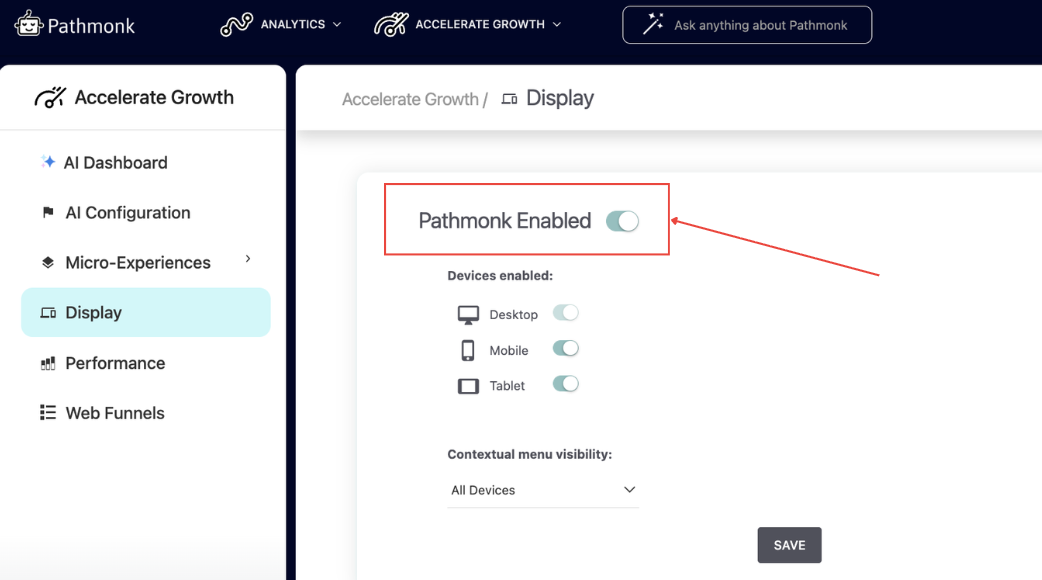
This option is helpful when you don’t want anything to appear on the site — for example, while redesigning pages or running a temporary experiment — but you still want Pathmonk to continue tracking traffic and behavior in the background.
Turning this toggle off:
Stops all visual Pathmonk elements from showing
Does not pause analytics or tracking
Does not pause your subscription, as the Pathmonk snippet continues to run normally
When you're ready to show microexperiences again, simply turn the toggle back on. Everything will resume immediately without needing to reinstall or reconfigure anything.
Was this article helpful?
That’s Great!
Thank you for your feedback
Sorry! We couldn't be helpful
Thank you for your feedback
Feedback sent
We appreciate your effort and will try to fix the article