The call-to-action (CTA) is shared across all your microexperiences to keep your messaging consistent and ensure every interaction supports your primary conversion goal.
Pathmonk allows you to use one or two CTAs, depending on your setup. To learn more, read this article about how to set Pathmonk with two different conversion goals.
To update your CTA:
Go to the Accelerate Growth tab in the top menu.
Click on Microexperiences.
Select Call to Action.
Edit the CTA text as needed.
Click Save to apply your changes.
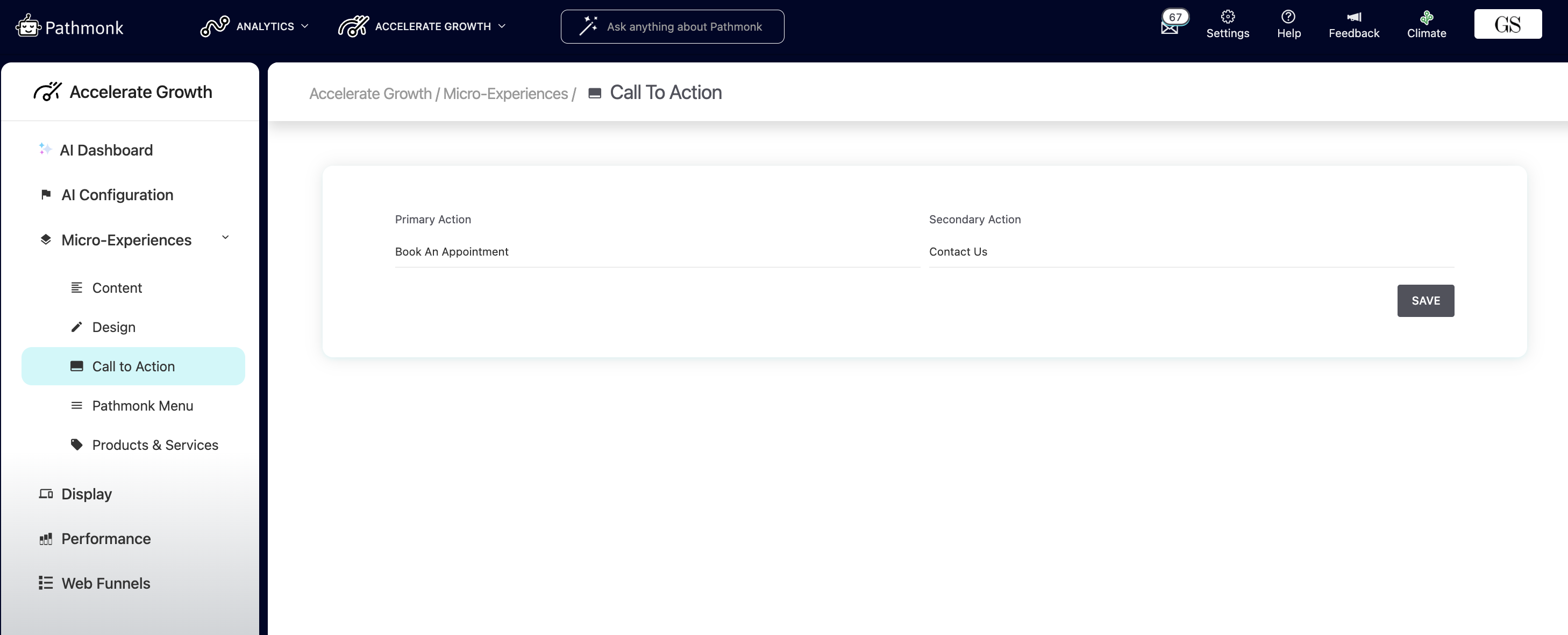
The CTA text field includes a character limit to maintain layout integrity. If you’re unable to continue typing, you’ve reached the maximum allowed characters and will need to shorten or rephrase your CTA.
If your setup includes two CTAs, make sure to preview your microexperiences after updating them to confirm that neither button gets cut off and the layout displays correctly.
Was this article helpful?
That’s Great!
Thank you for your feedback
Sorry! We couldn't be helpful
Thank you for your feedback
Feedback sent
We appreciate your effort and will try to fix the article