The Pathmonk menu is a vertical widget that appears on the right side of the screen for desktop users and at the bottom of the screen for some mobile users. It contains a series of small tiles that give visitors quick access to essential actions such as learning about your company, viewing FAQs, or opening your main conversion goal.
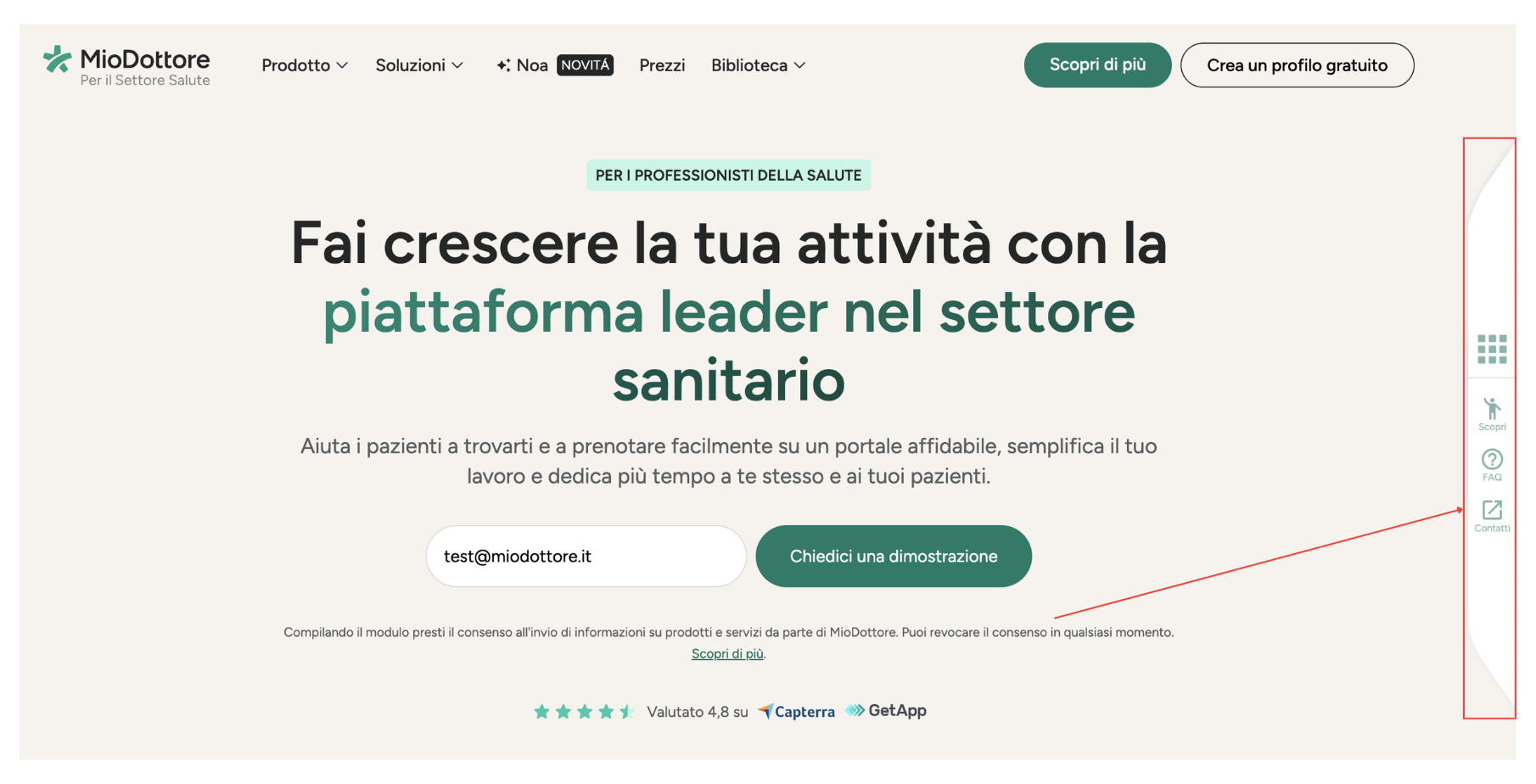
The goal of the menu is to make your key actions easy to find without interrupting the browsing experience. You can choose to keep it visible, customize it, or hide it completely depending on your website layout and preferences.
2. How to edit the Pathmonk menu
To configure the menu, go to: Accelerate Growth > Micro-Experiences > Pathmonk Menu. Each tile can be edited individually.
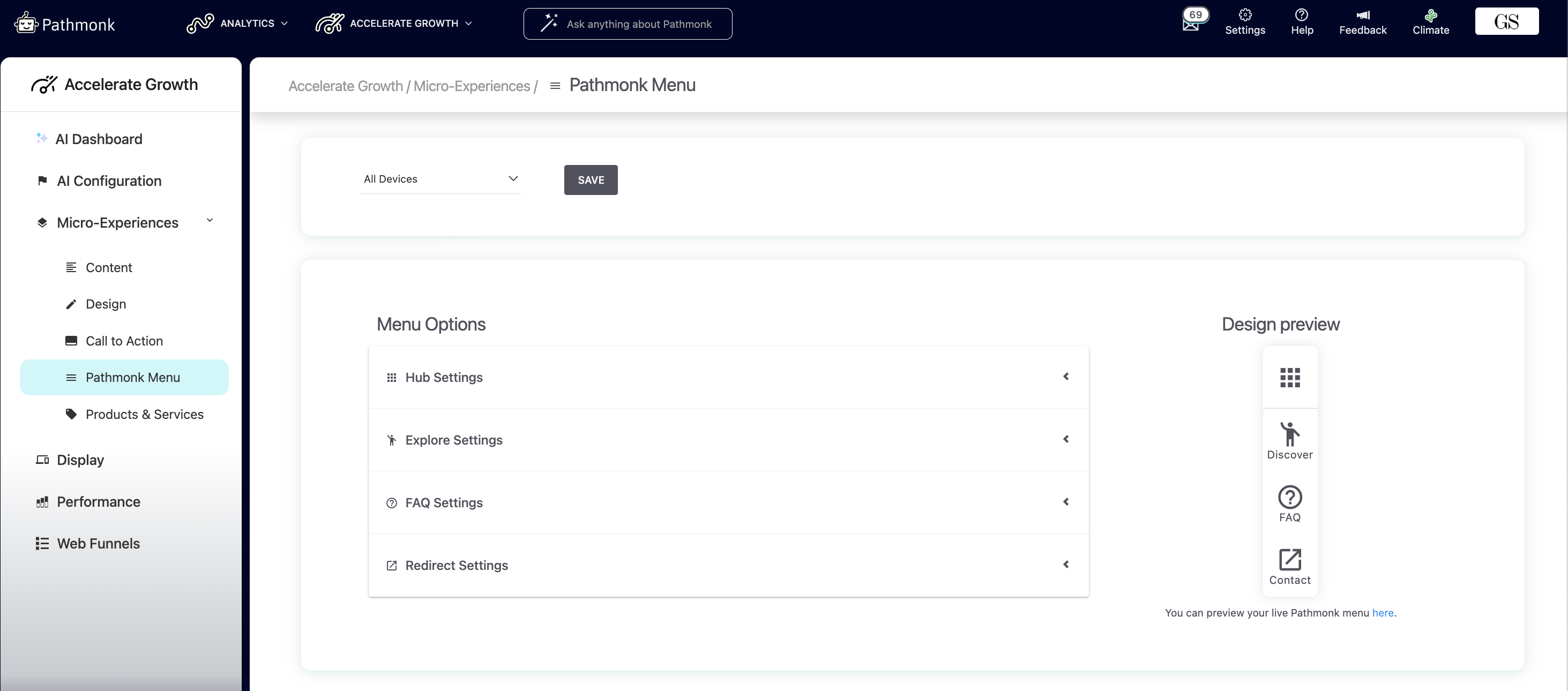
Tile 1: Hub
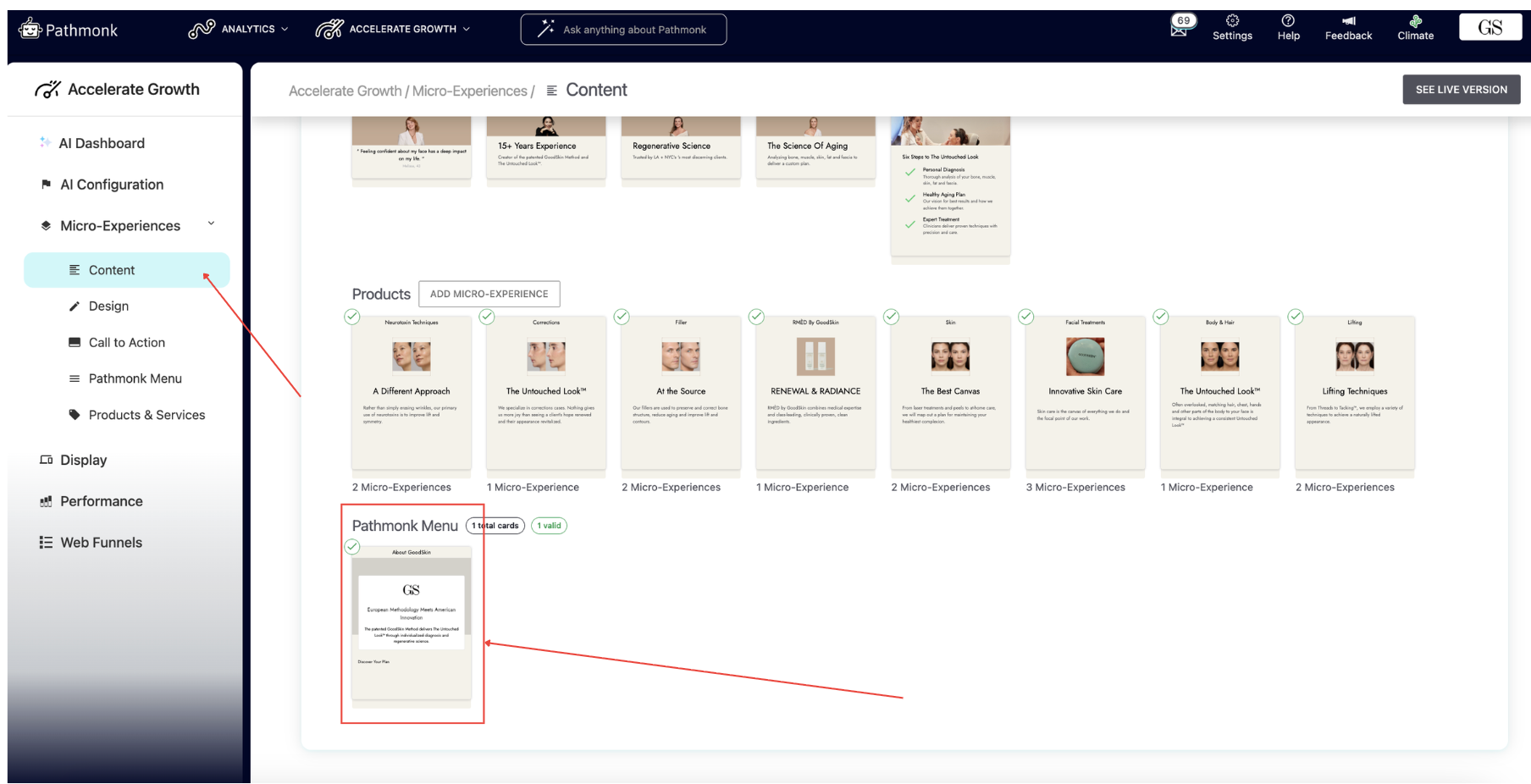
The Hub tile opens a simple introductory card. This is usually where you briefly explain who you are or what your company does in one or two sentences. This is a small but helpful way to give visitors context without overwhelming them.
This is the only tile that needs to be updated from Content, where all the other microexperiences are located.
Go to Micro-Experiences > Content
Scroll to the Menu section
Edit the card generated
Tile 2: Conversion goal
This tile opens your primary conversion experience. Depending on your setup, it will show:
Your Welcome experience (recommended) — usually includes your intro video, or
Your Decision experience — like a redirect to a demo booking form or lead generation page
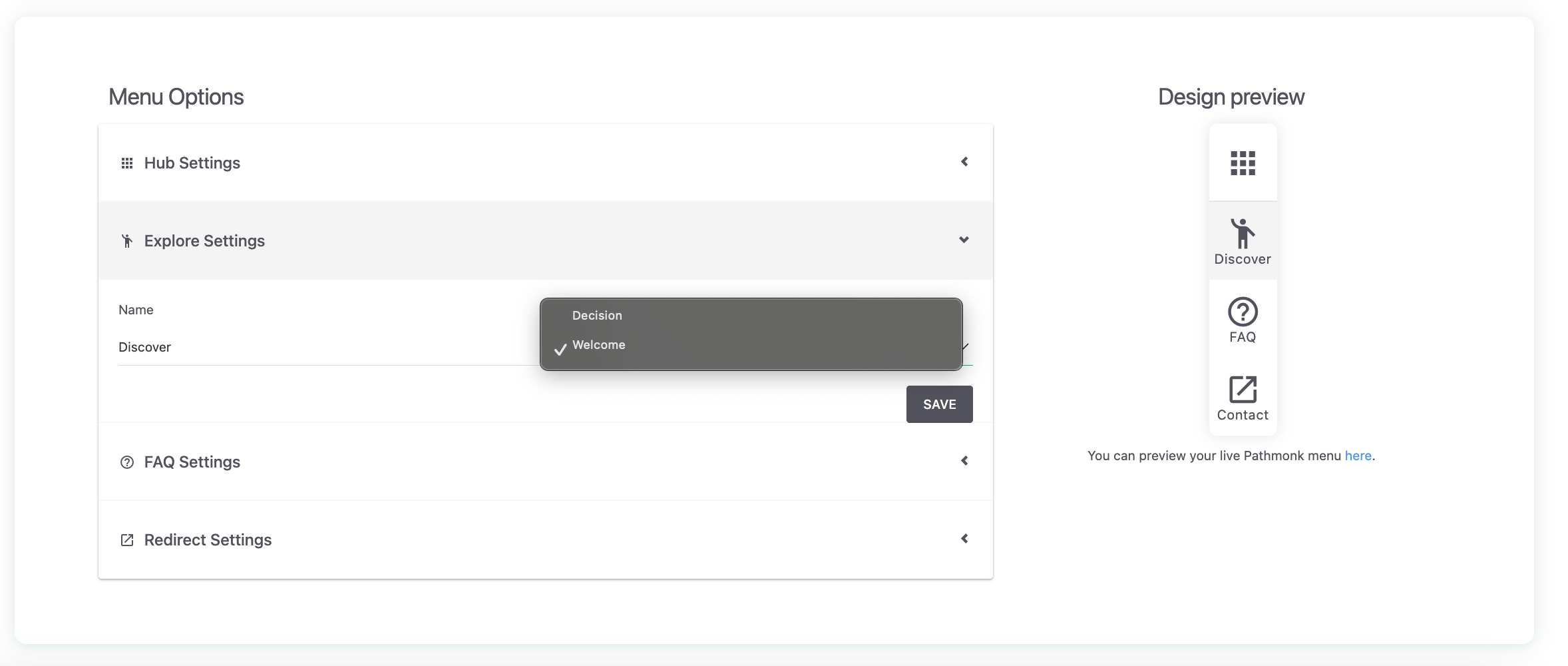
Using the Welcome card here is usually clearer because it introduces your offer before asking visitors to take action. You can also rename this tile. Some common labels are:
Learn
Intro
Start here
Hello
Choose whichever feels most natural for your site.
Tile 3: FAQ
The FAQ tile opens your Frequently Asked Questions. These are automatically created during onboarding, but you can (and should) edit them so they reflect your real messaging. You can:
Add new questions
Remove irrelevant ones
Update the answers
Assign different CTAs to each FAQ (Example: one FAQ may redirect to a pricing page, another may open a contact form.)
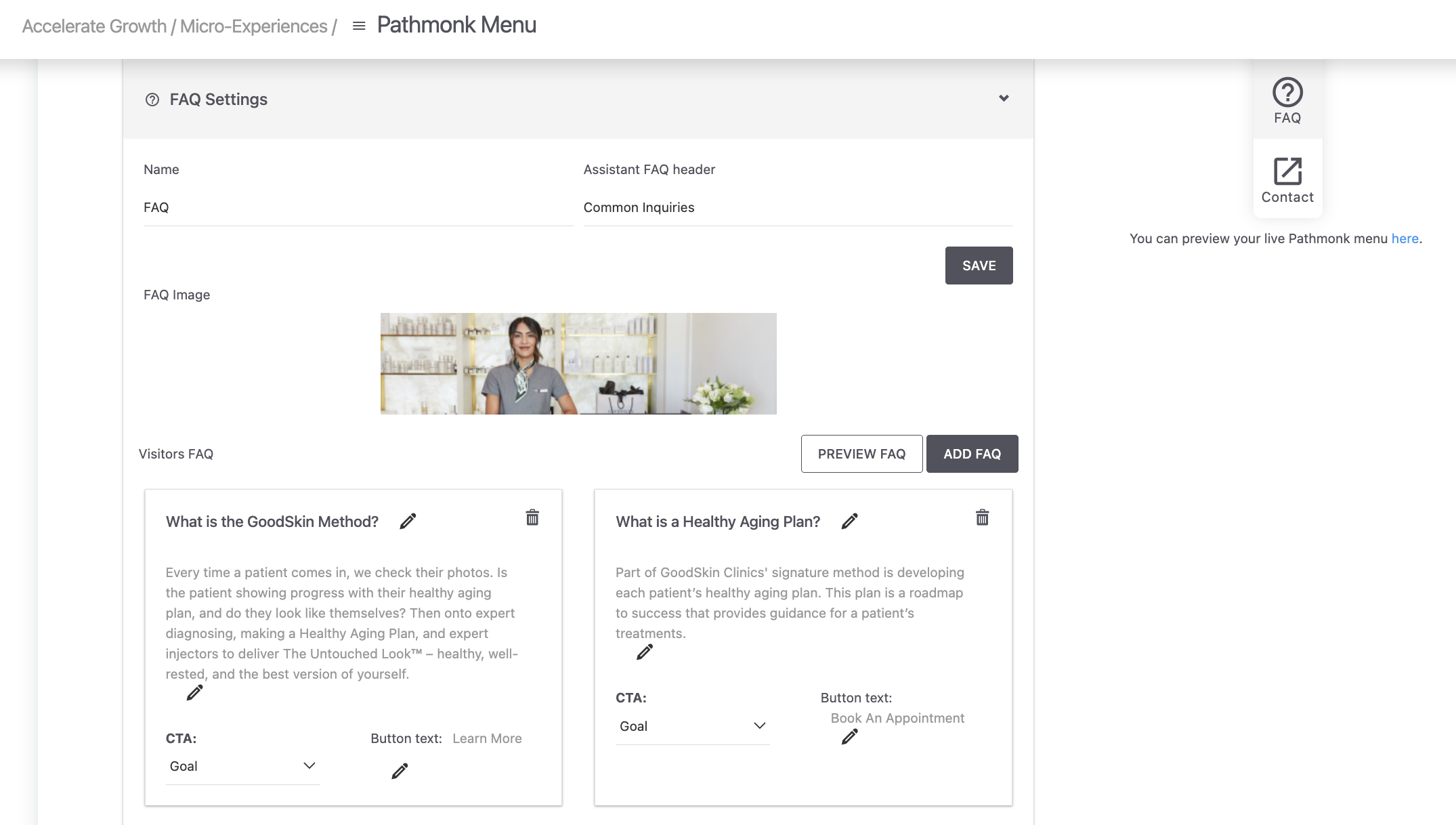
This makes the FAQ tile a flexible tool for guiding visitors toward the right next step.
Tile 4: Support/Contact
The final tile can be configured in two ways:
Contact form — displays a simple contact form directly inside the experience
Redirect — sends users to your website’s contact page or any other page you prefer
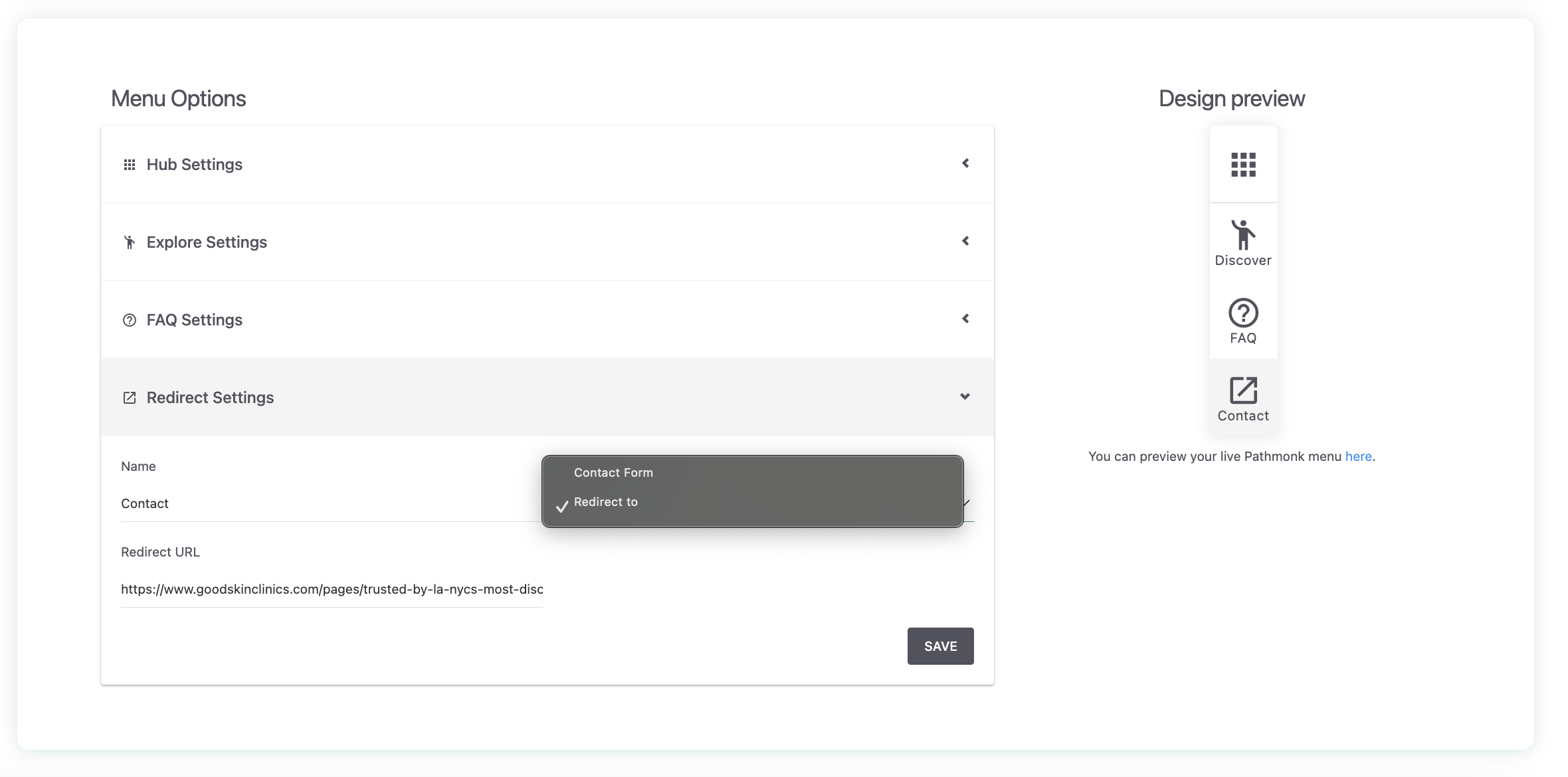
Choose the option that fits your existing workflow. For example, if your team handles all inquiries through your website form, redirecting may keep things consistent.
Customizing the design
If you want to rewrite the system's default design, head to Micro-Experiences > Design. Under Advanced Style Customization, you can paste custom CSS to match your brand perfectly, from colors to spacing to animations. Check the article How to apply your branding for more information.
How to preview your menu
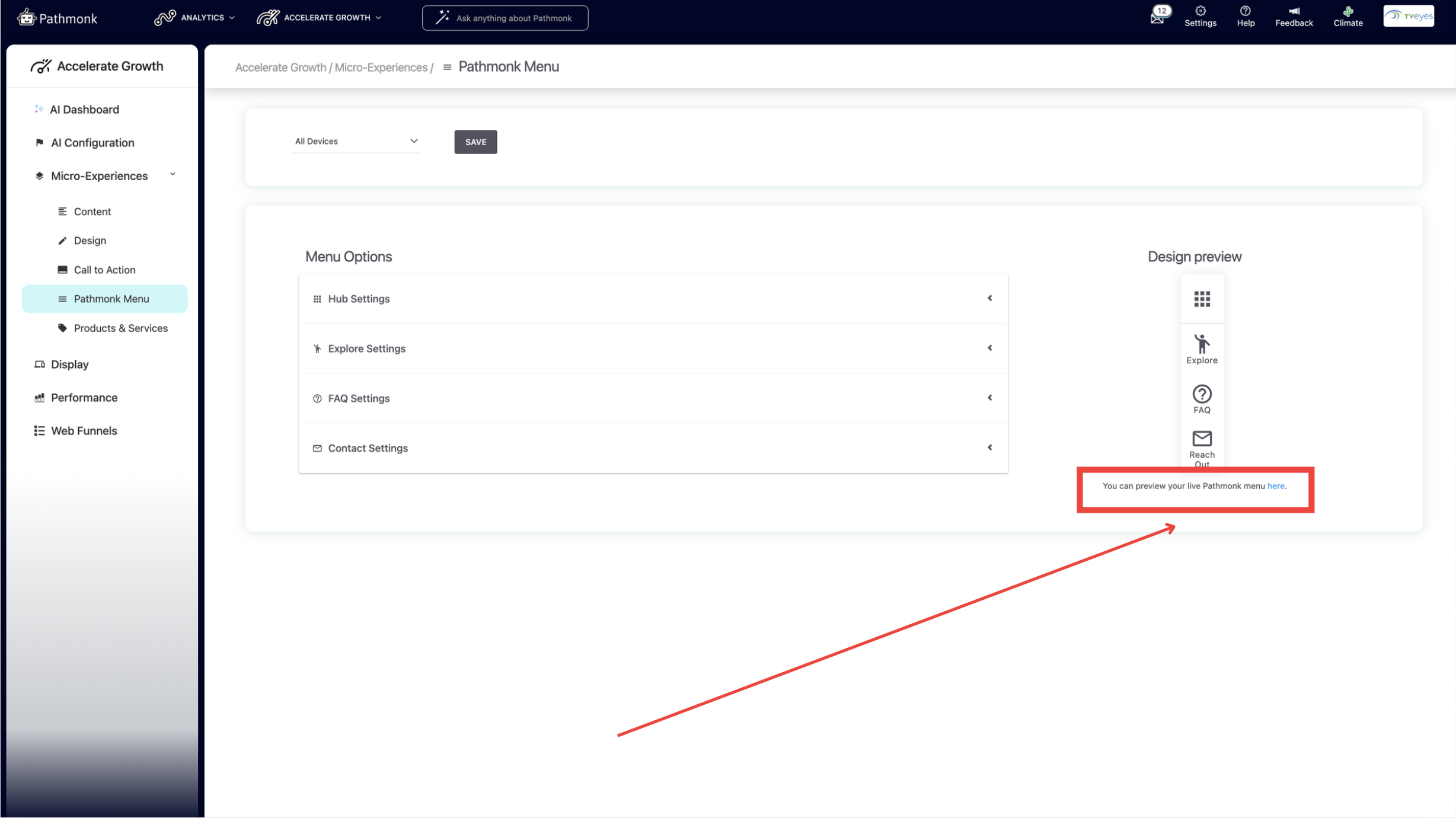
Before pushing changes live, you can see exactly how the menu will look. Click the preview button inside the Pathmonk Menu section. Then, select to preview the Pathmonk menu to trigger it on the right side of your screen.
Still need help with your menu?
If you're having trouble updating your menu or need more information on how to set it up, get in touch with our team at support@pathmonk.com and we'll get it ready for you.
Was this article helpful?
That’s Great!
Thank you for your feedback
Sorry! We couldn't be helpful
Thank you for your feedback
Feedback sent
We appreciate your effort and will try to fix the article