If you want a cleaner look in your video microexperiences, you can hide the sound (speaker) icon using a simple CSS customization.
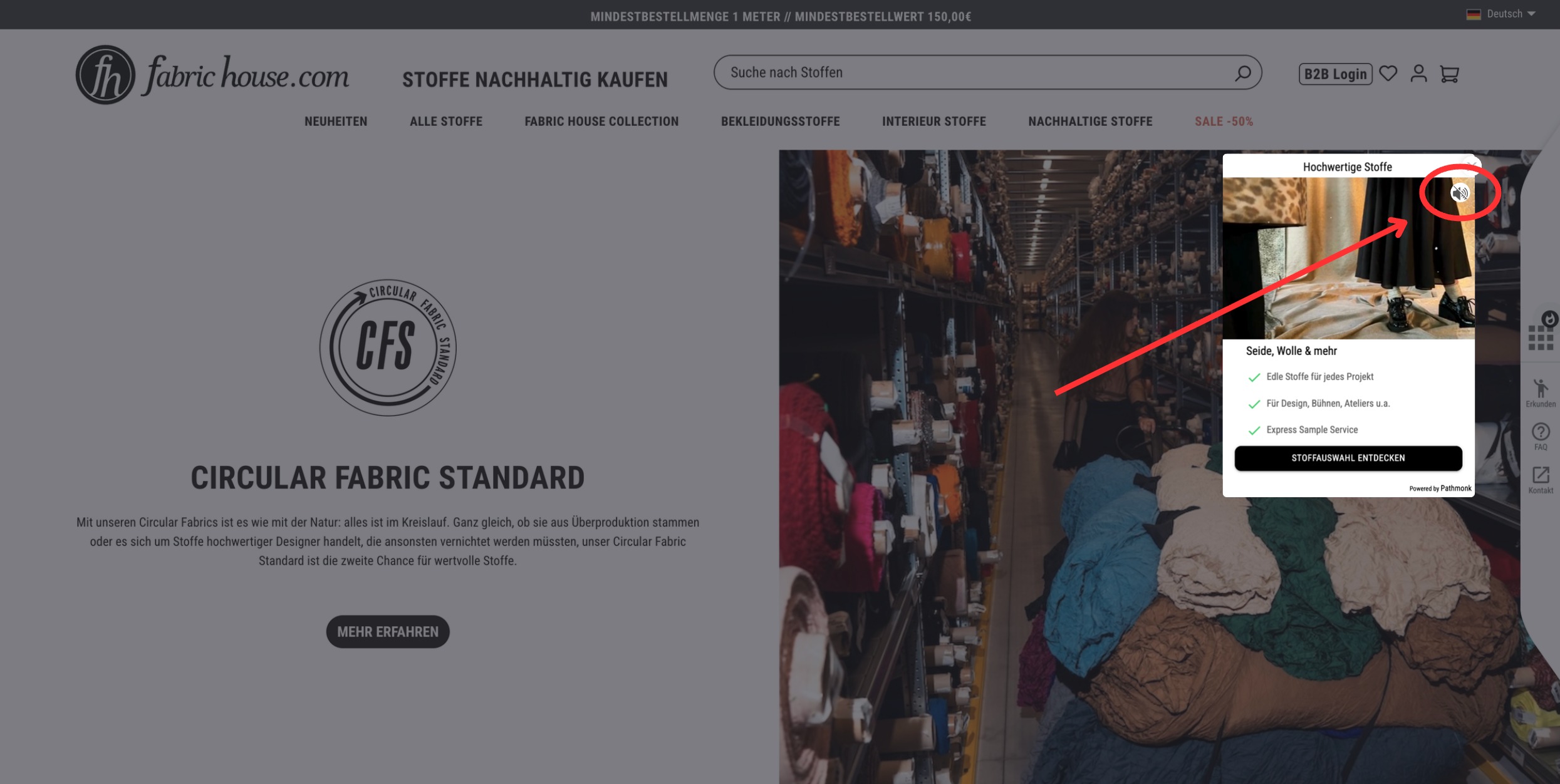
This is useful if you prefer a more minimal design or if you do not want users to interact with the audio controls.
⚠️ Important: Once the sound icon is removed, the video will remain muted because users will no longer have the option to enable sound.
Steps to hide the sound icon
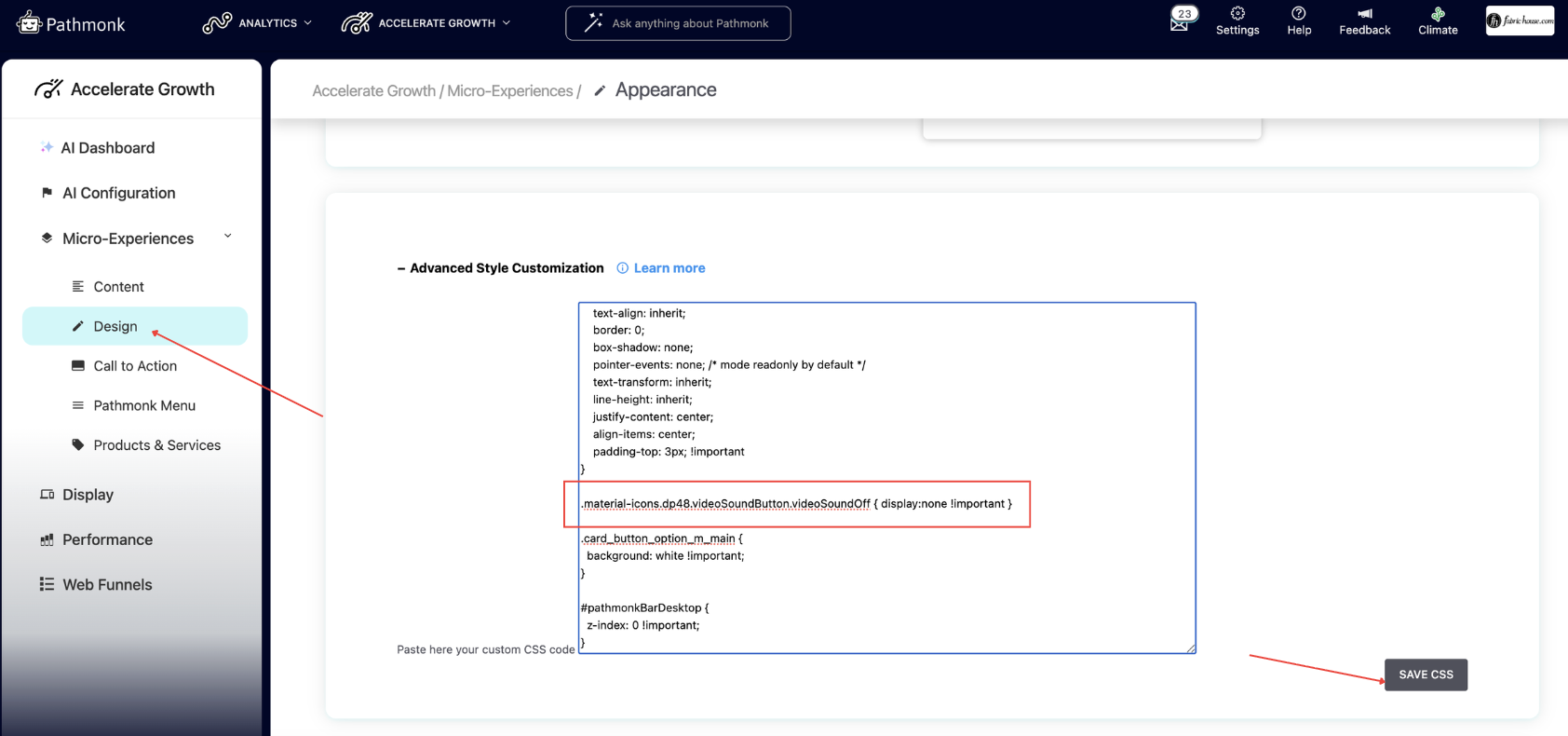
Go to Accelerate Growth → Micro Experiences.
Go to Design and scroll down to Advanced style customization.
Paste the following CSS code:
.material-icons.dp48.videoSoundButton.videoSoundOff {
display: none !important;
}
Click Save CSS.
The sound icon will no longer appear in the video micro-experience.
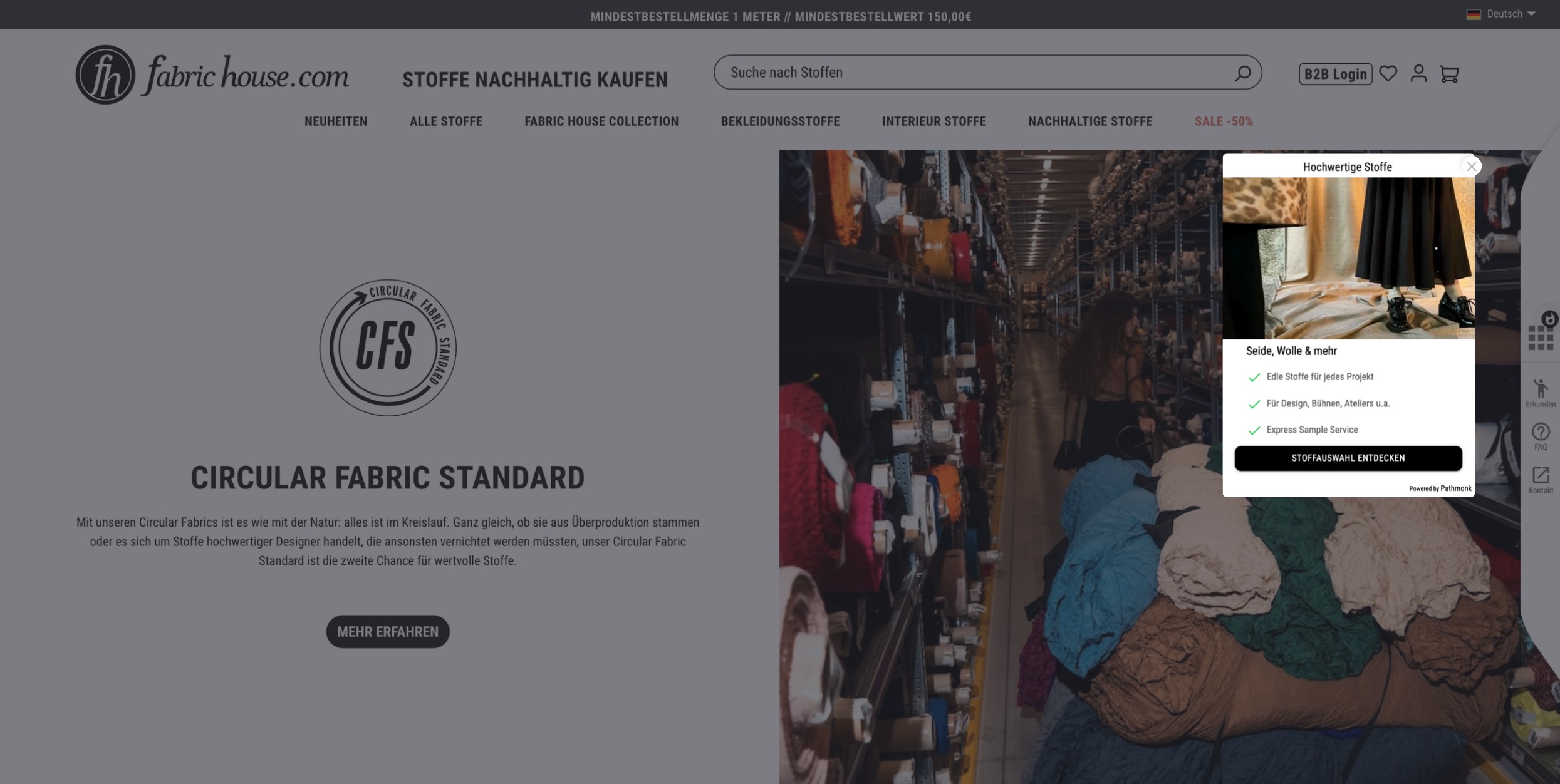
What happens after this change
After applying this customization:
The speaker icon will be hidden.
The video will remain muted.
Users will not be able to enable sound.
Was this article helpful?
That’s Great!
Thank you for your feedback
Sorry! We couldn't be helpful
Thank you for your feedback
Feedback sent
We appreciate your effort and will try to fix the article