Products & Services microexperiences are a secondary set of text-based cards designed to give visitors more context about a specific product or service. These cards are not shown to everyone, only to visitors Pathmonk’s AI identifies as potentially interested in that offering.
They work alongside your core microeperiences to add relevance and help guide visitors as they explore different parts of your website.
You can access these cards directly from Accelerate Growth > Micro-Experiences > Content, where you have all your other content, or directly through the tab called Products & Services. The only difference is the visualization:
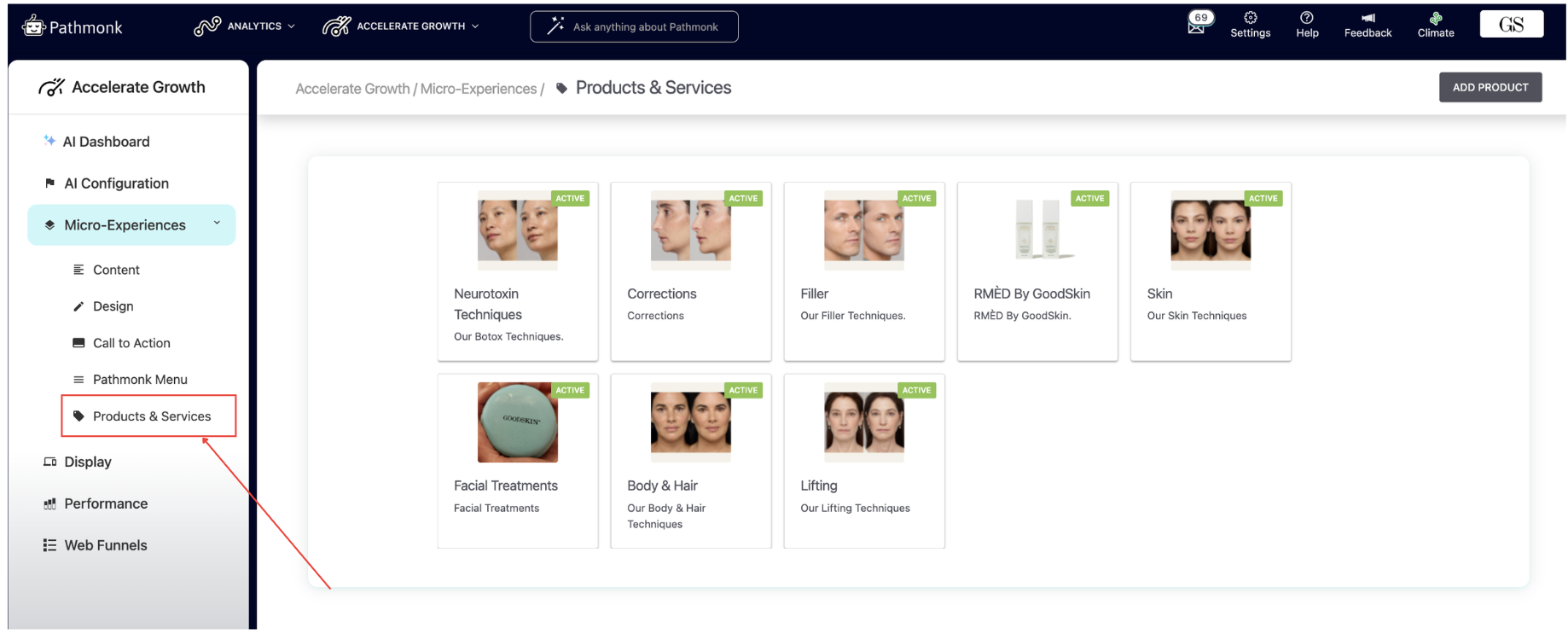
In the example shown above, this cosmetic clinic has created different cards for each one of their services offered.
Step 1: Creating a product or service
1. Go to Accelerate Growth → Micro-Experiences → Products and Services
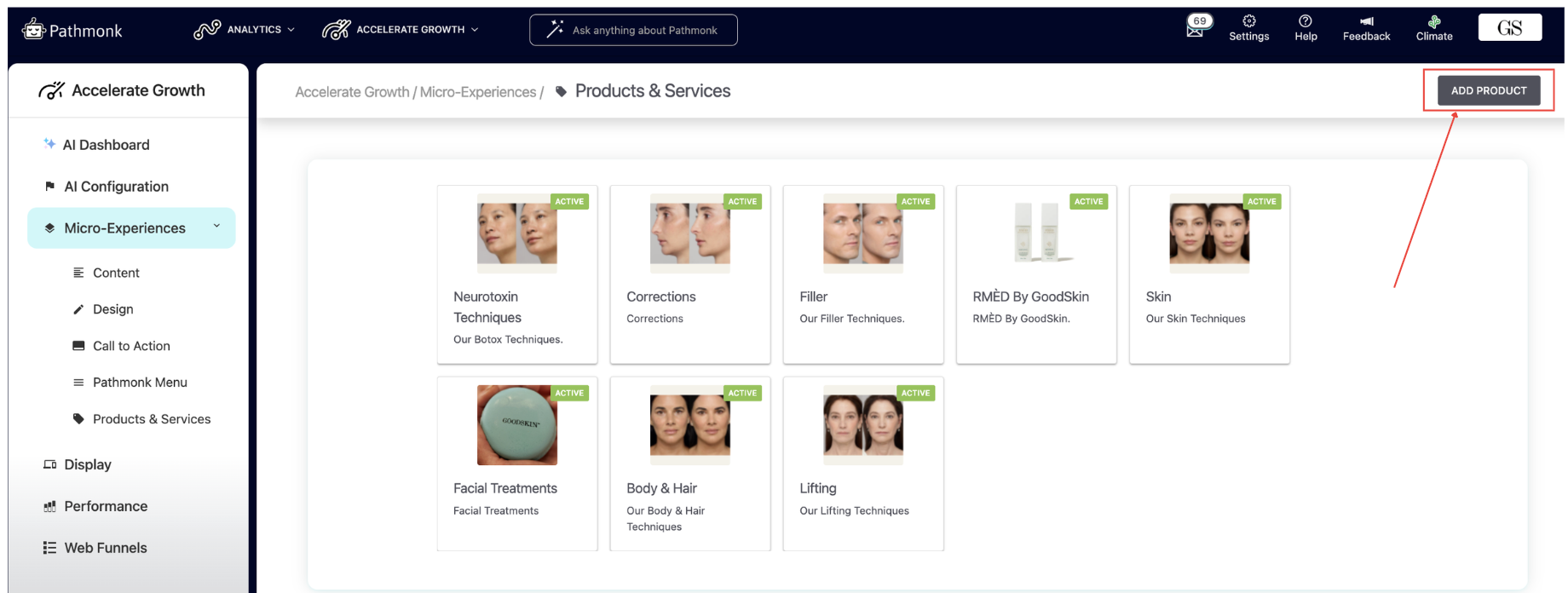
2. Click Add Product
3. You’ll be prompted to select whether this is a service, a software product, a course, or another type of product item. This classification helps Pathmonk understand the nature of what you’re promoting so the AI can better match it with the right visitor behavior.
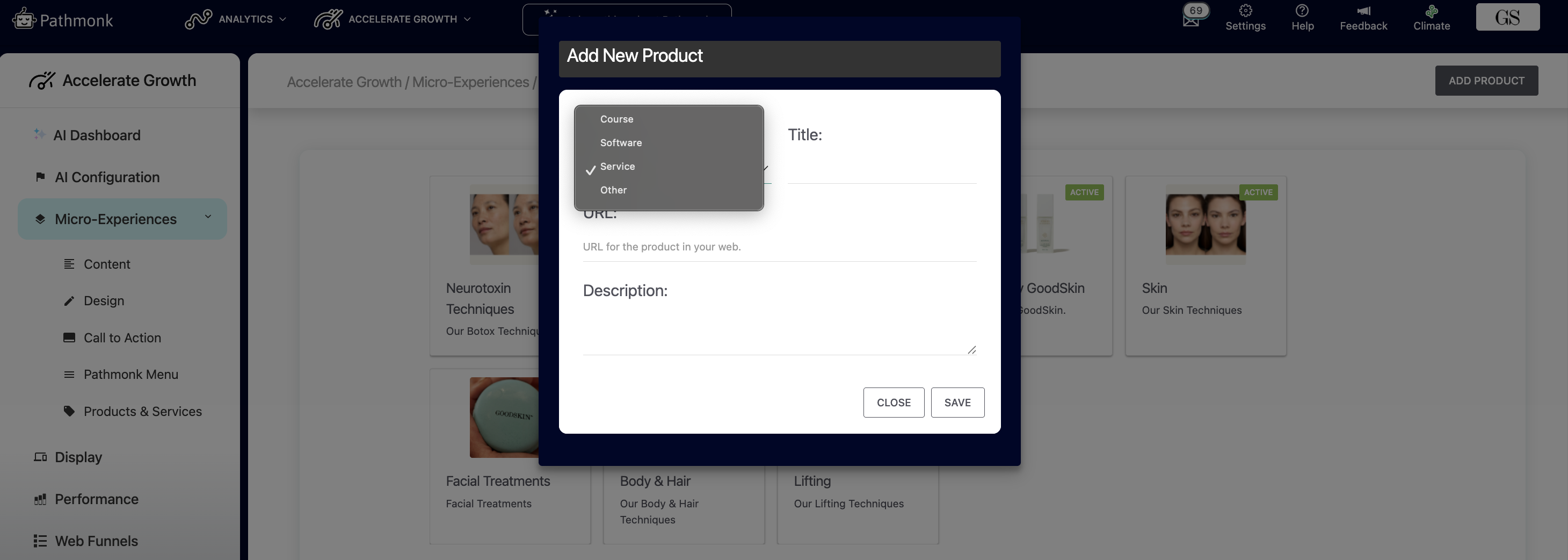
4. Then, add:
- a title (this will be the top headline of your microexperience)
- the url of the page you're promoting
- a short description (this is just for your internal records, it won't show up in the microexperience)
Once you've saved this, you’ll then be shown the product customization options.
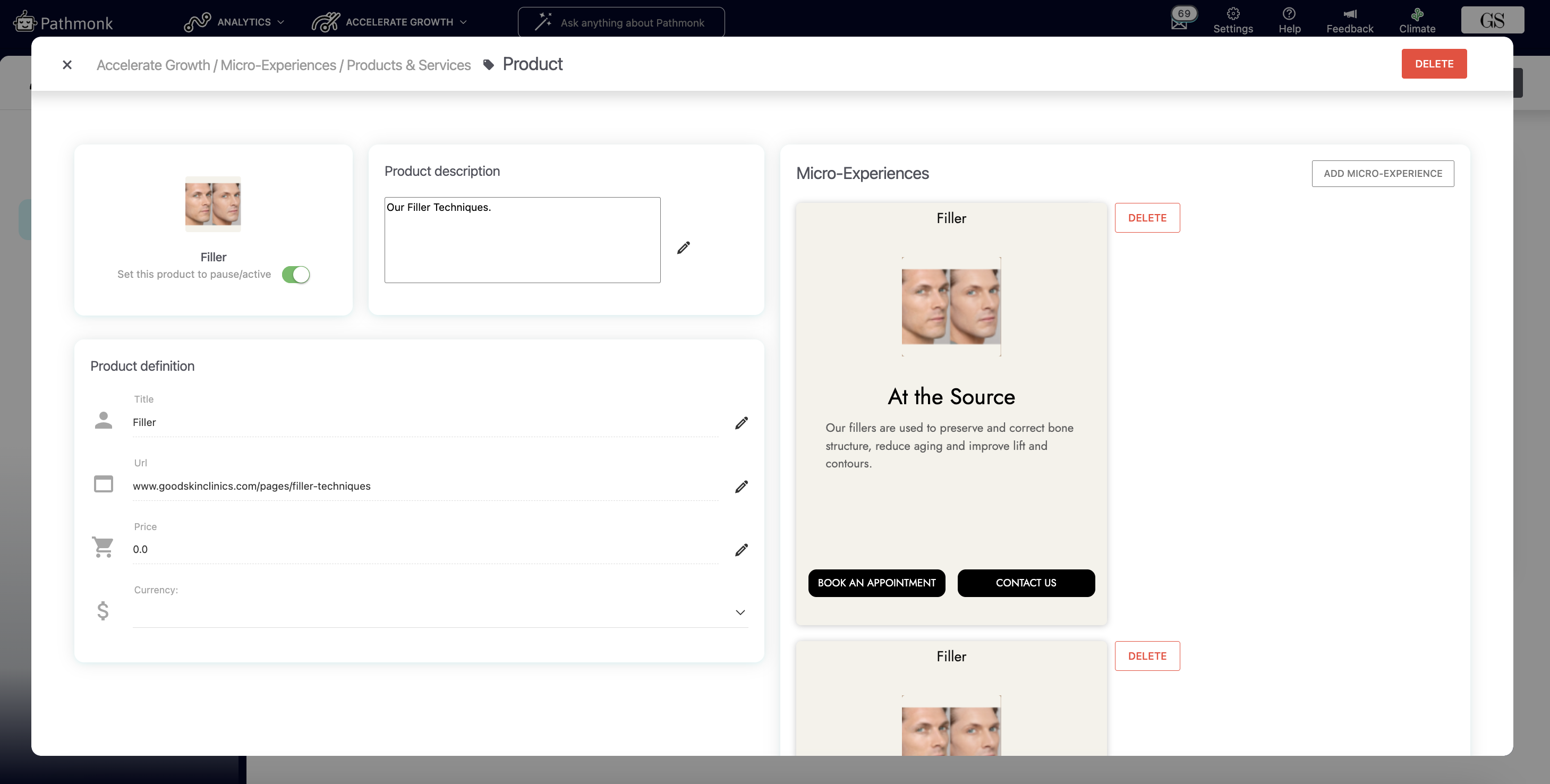
5. On the left side of the screen, you can edit all the settings that apply to every Micro-Experience linked to this product. This includes the product description, the top title, the URL, and the optional price field that can be added in this step.
6. You can also upload a 90×90 px image to visually represent the product or service. This image is used across all related microexperiences, so choose something simple and easy to recognize. Keep the file size under 500 KB to ensure fast loading.
7. At the top, you’ll see a toggle to activate or pause the product. When the toggle is green, Pathmonk can display microexperiences for this item.
Once these details are set, you can start creating the microexperiences that will appear for visitors interested in this product.
Step 2: Creating a product-specific microexperience
1. Click on Add microexperience on the top right corner
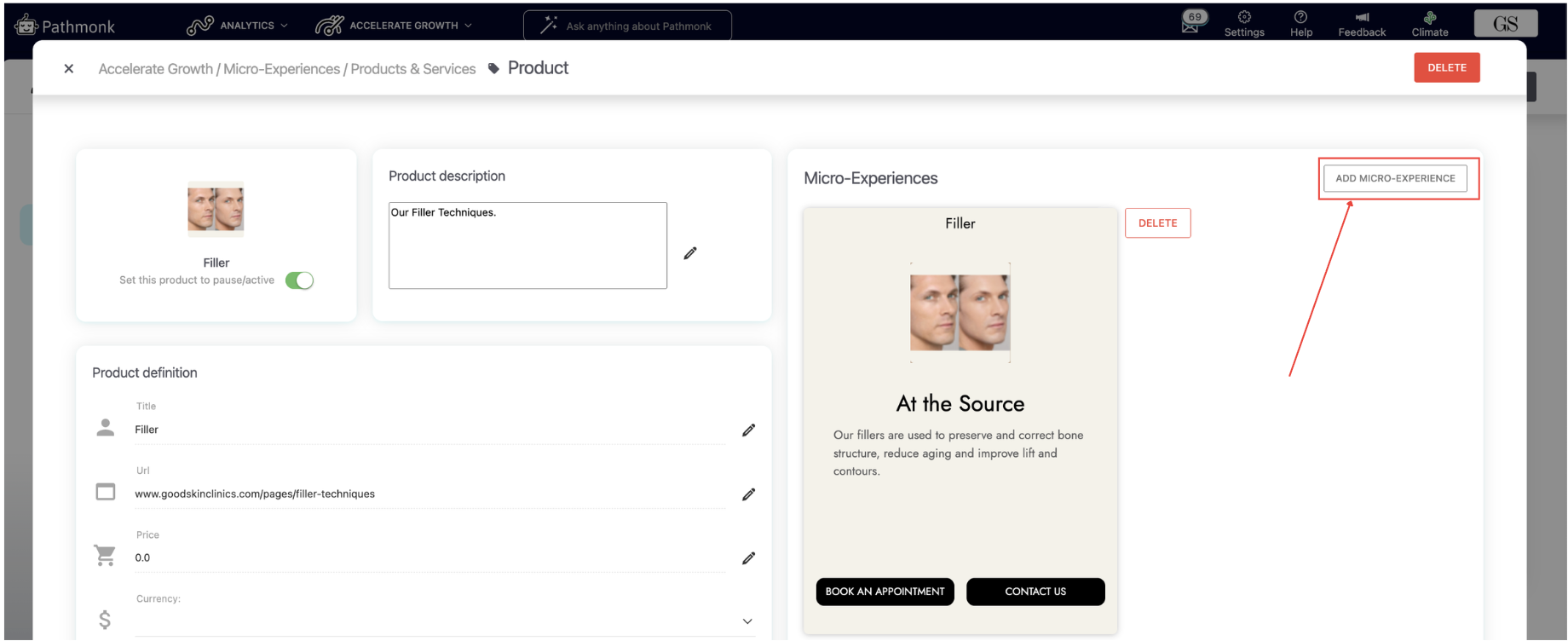
2. Now enter the headline and body text of the microexperience on the pop up, and click on Create.
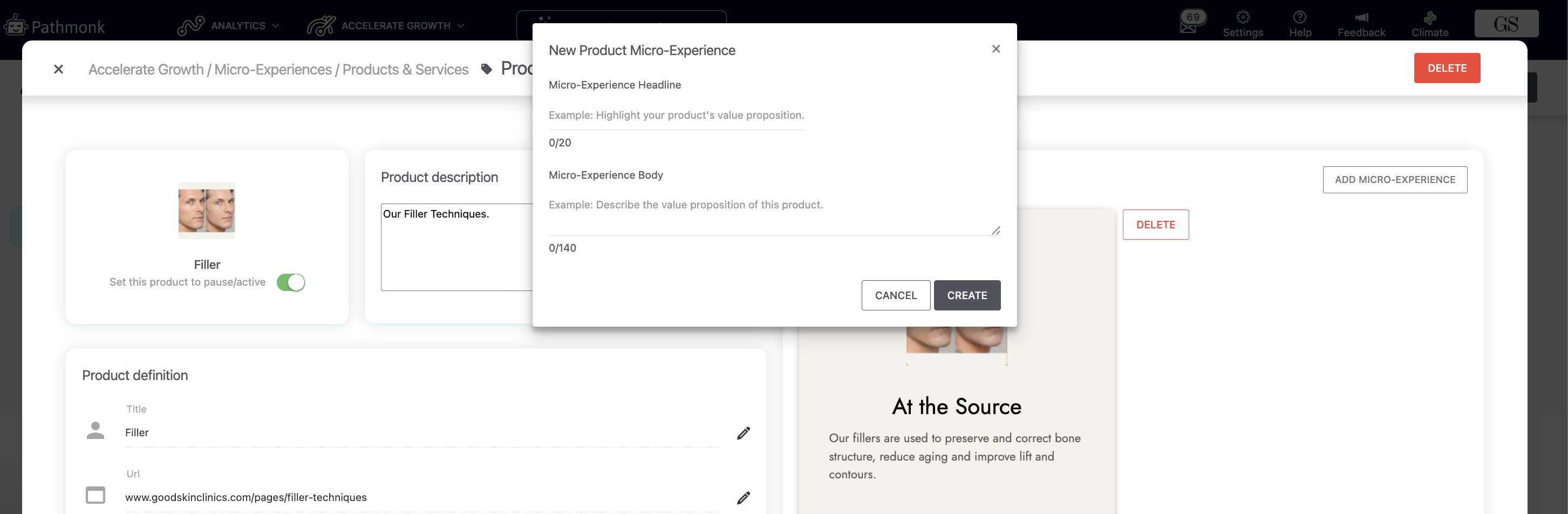
Your new microexperience will now be linked to that specific product or service. Remember that you can create more than one microexperience for the same product just by repeating these steps.
Still need help with your microexperiences?
Reach out to support@pathmonk.com and we'll help you create any assets needed.
Was this article helpful?
That’s Great!
Thank you for your feedback
Sorry! We couldn't be helpful
Thank you for your feedback
Feedback sent
We appreciate your effort and will try to fix the article