If you don’t want Pathmonk to run across your entire website, Google Tag Manager allows you to precisely control where the Pathmonk snippet loads.
This is useful if you want to:
Test Pathmonk on a single country or language version
Enable it only on specific sections or URLs
Run a limited rollout before expanding site-wide
As an example, we’ll restrict Pathmonk to just the German version of a customer's multilingual site:https://www.fabrichouse.com/de
1. Add the Pathmonk tracking snippet as a new tag
1. Open Google Tag Manager
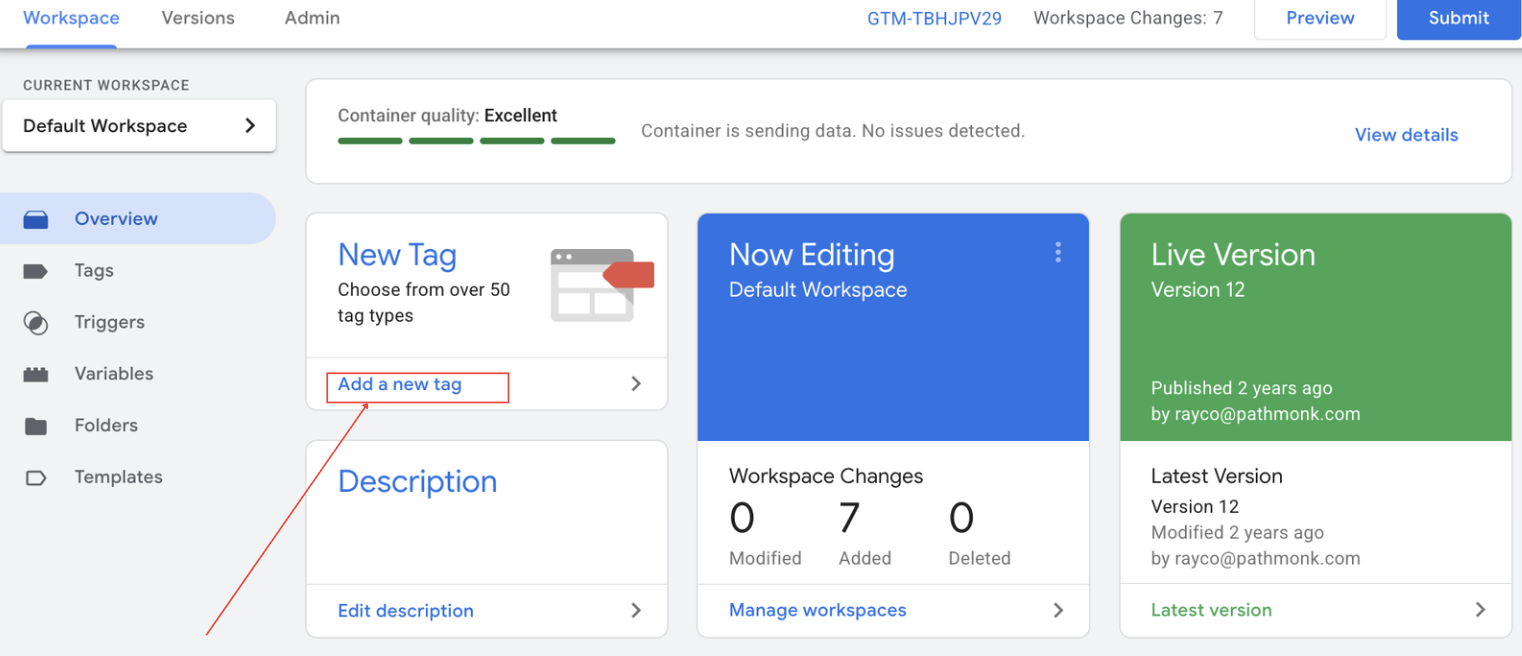
2. In your workspace, click Add a new tag
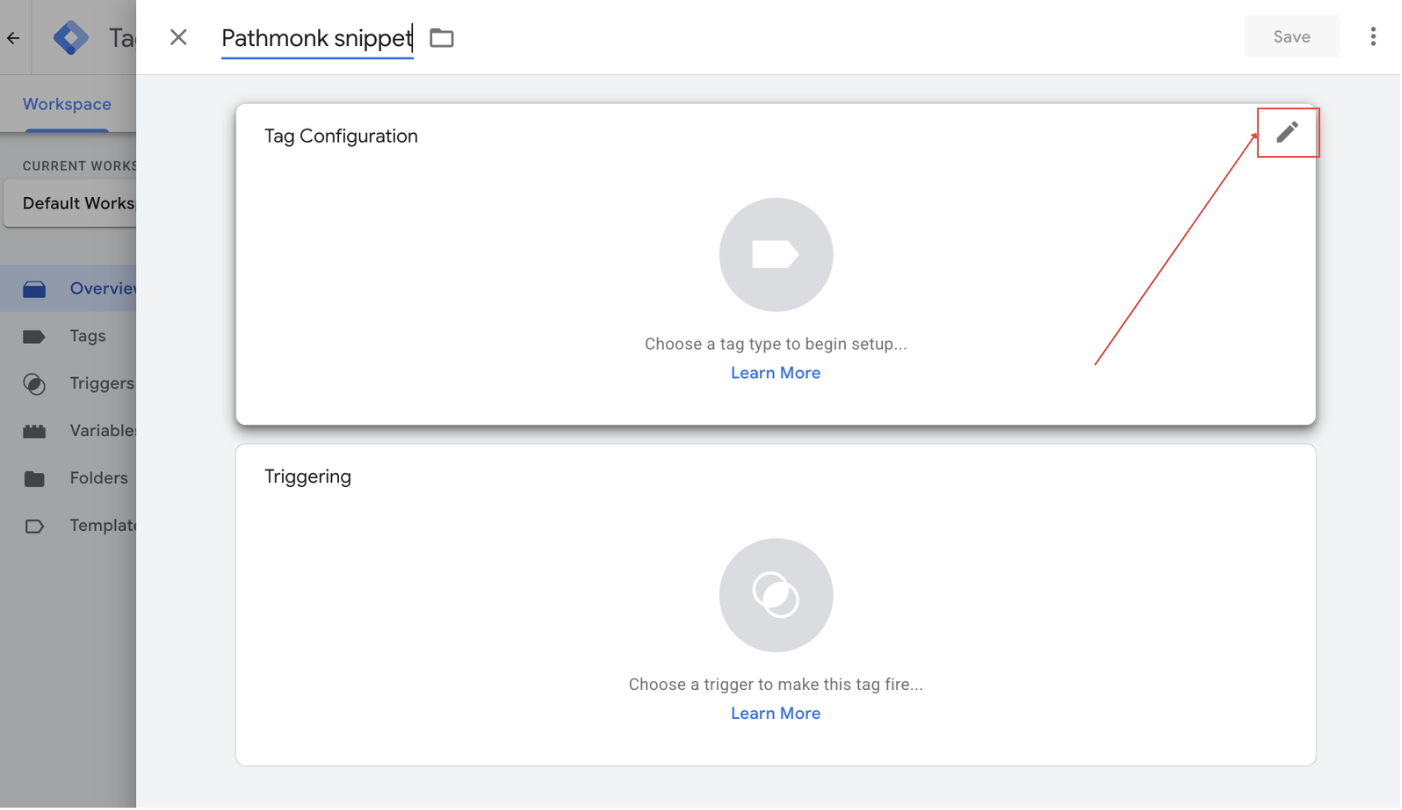
3. Name the tag and click the pencil icon in the top right corner of the Tag Configuration section
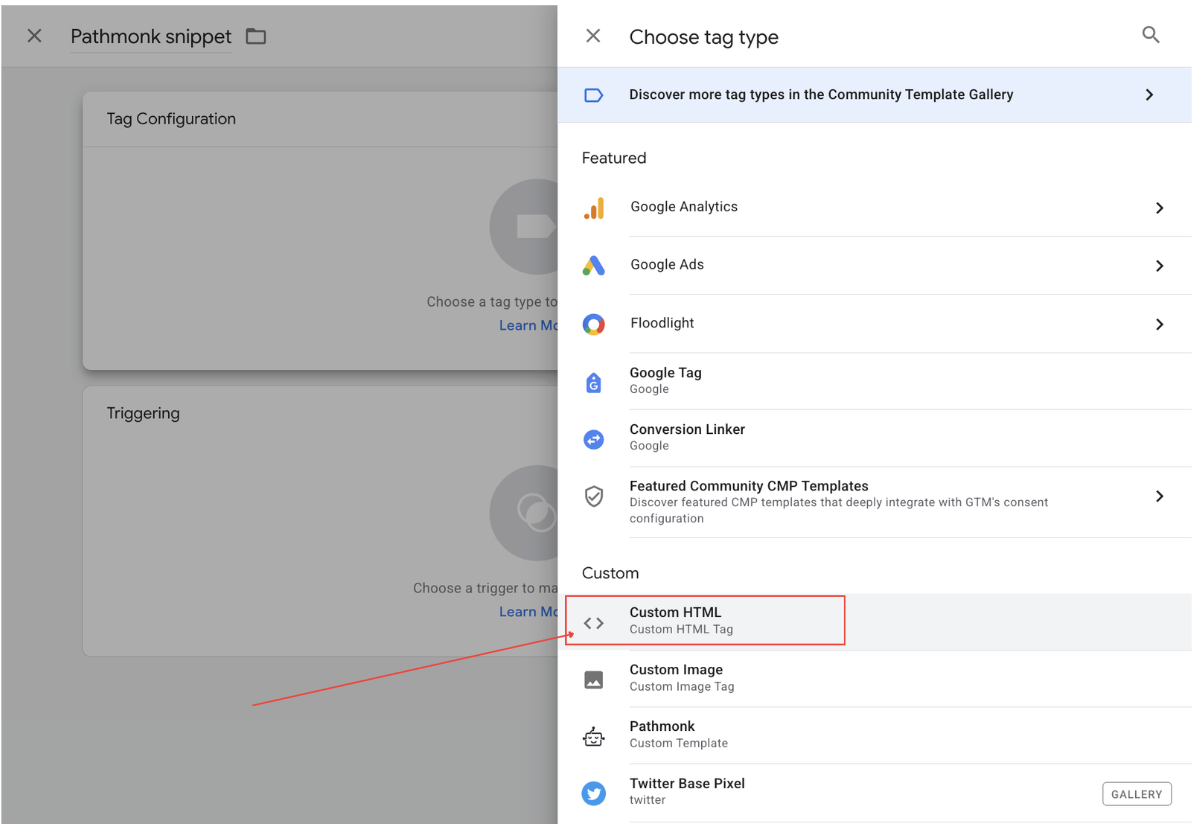
4. Select Custom HTML
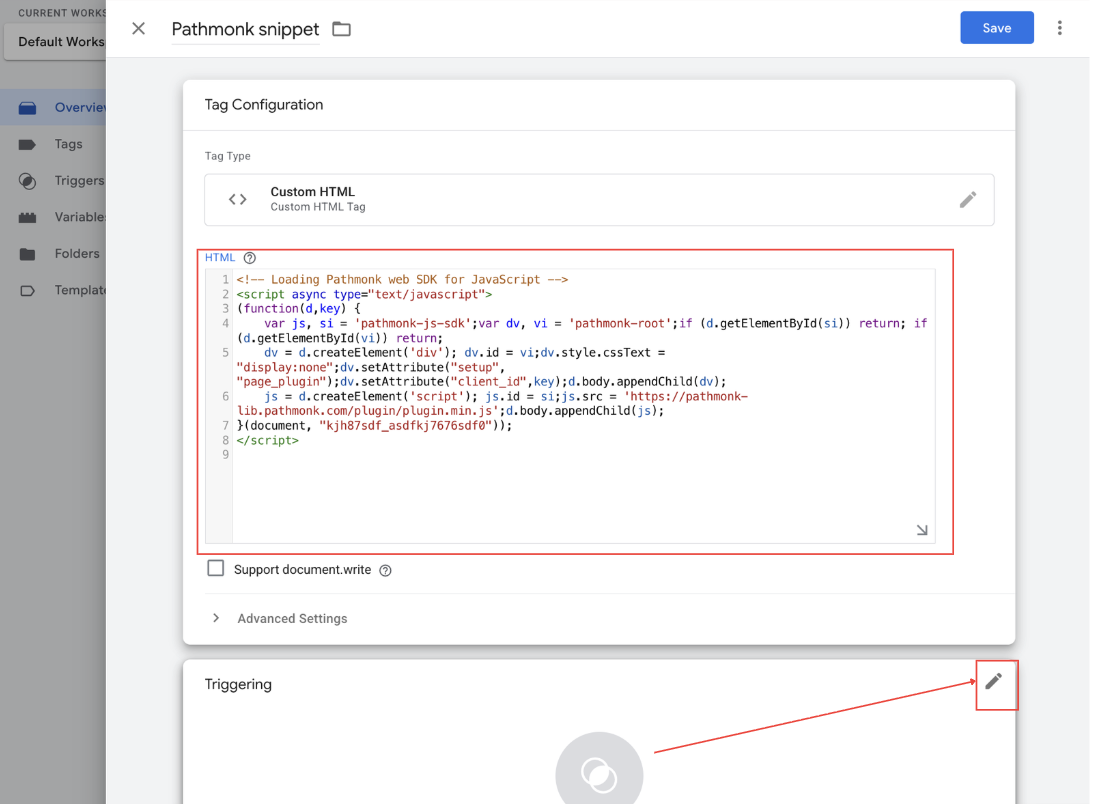
5. Paste your unique Pathmonk tracking snippet into the HTML field
2. Create a trigger for a subset of your website
1. Once your tag code has been pasted, click on the pencil icon situated at the top right corner of the Triggering box
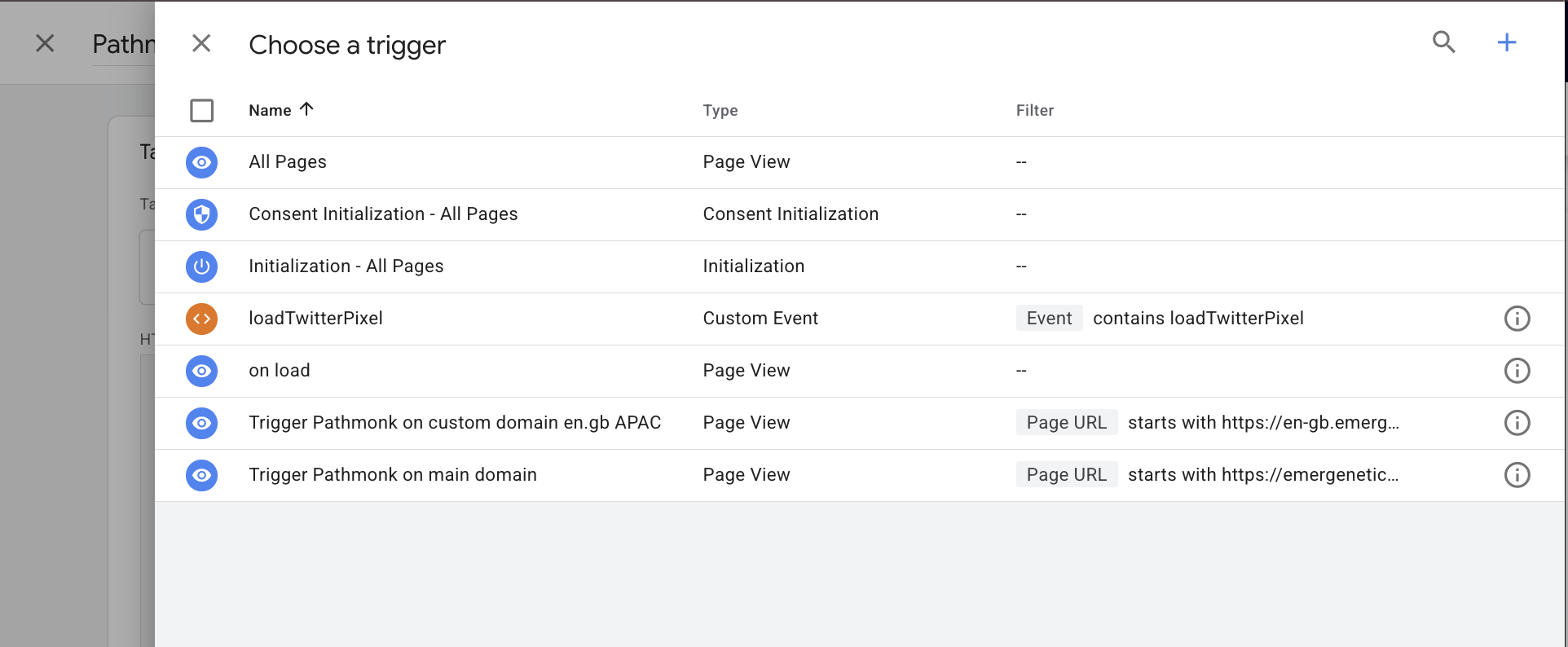
2. You can choose from one of your already existing triggers or click on the + icon in the top-right corner to create a new trigger, which is what we're going to do here.
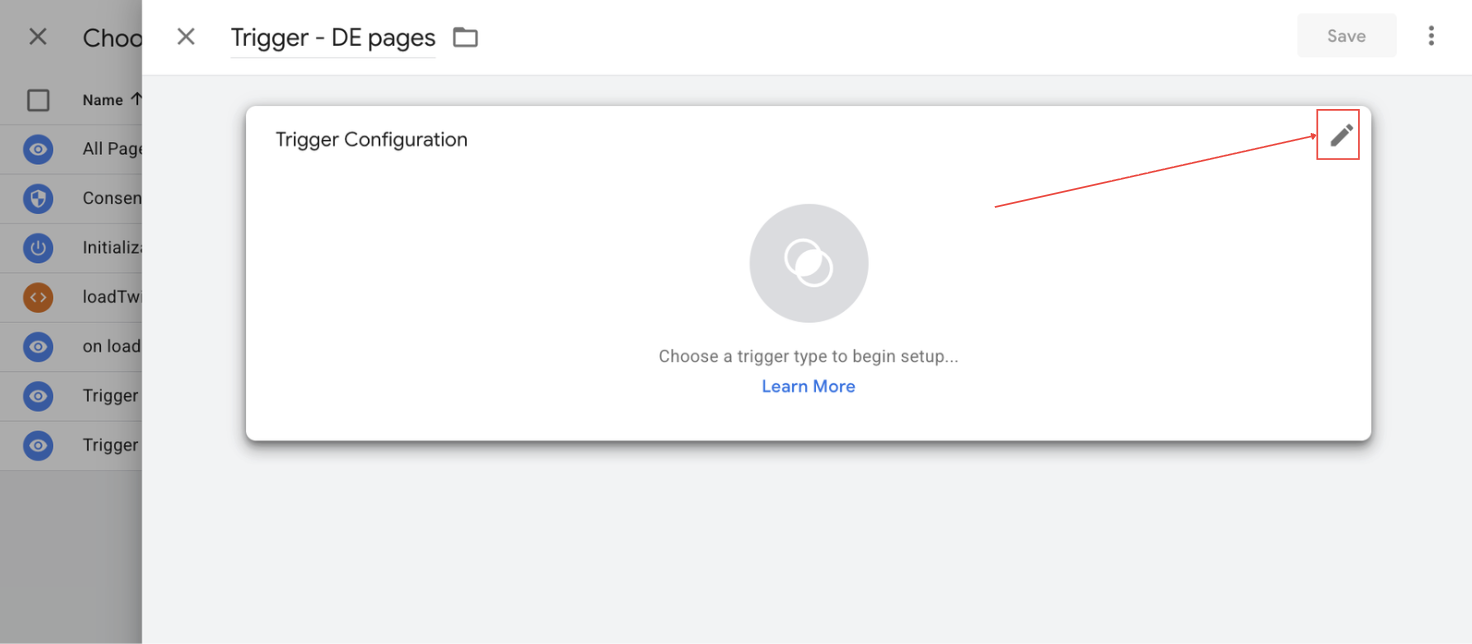
3. Now, name your trigger and click on the top-right pencil to keep configuring it
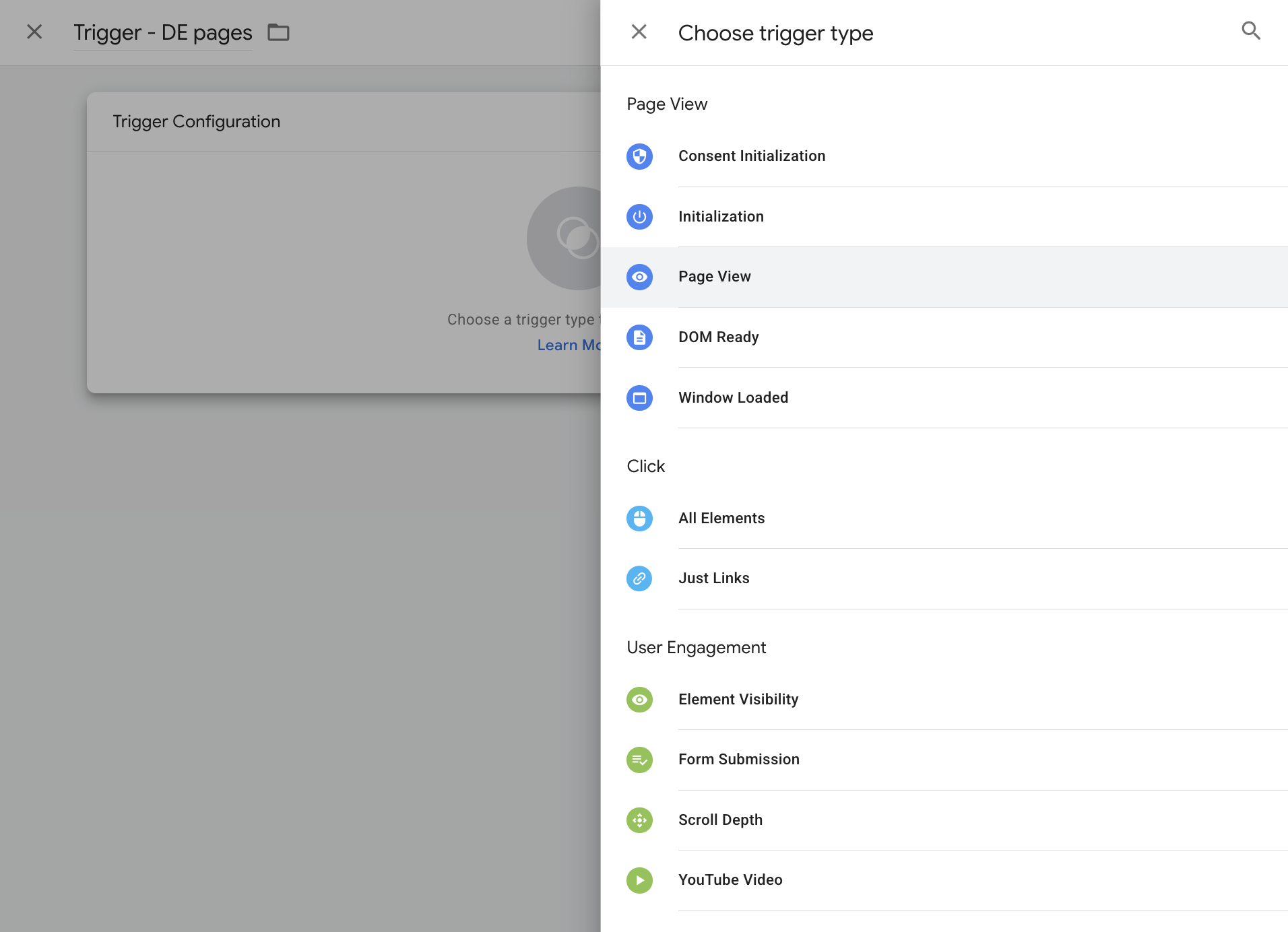
4. In this case we're going to select Page View as the trigger type
5. Under This trigger fires on, select Some Page Views. Define the rule. In this case:
Page URL
starts with
https://www.fabrichouse.com/de
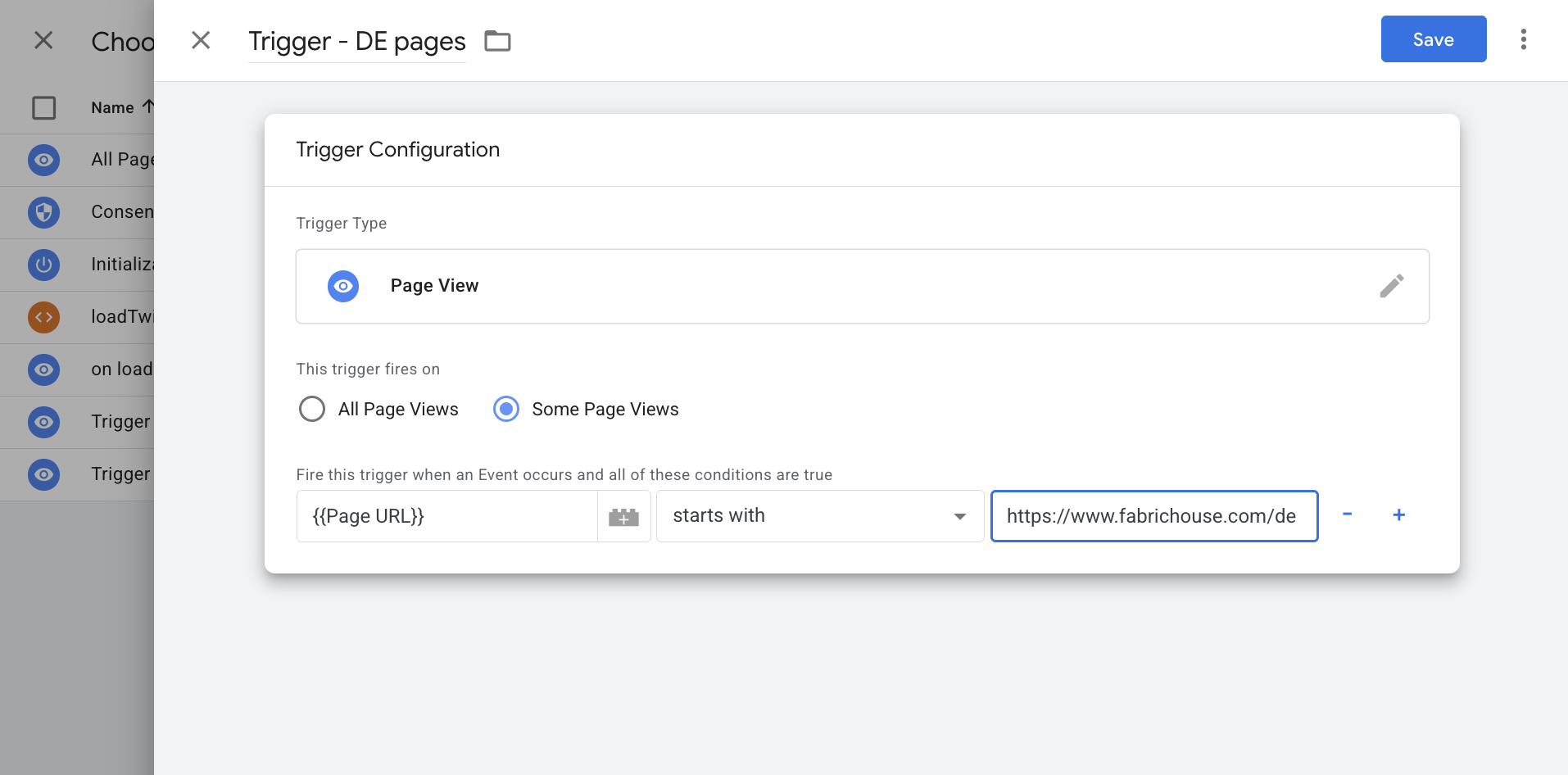
This setup ensures that the Pathmonk snippet only fires when a visitor lands on pages belonging to the German version of the website. You can customize this to your needs.
6. Click Save to store the trigger
7. Remember to Submit your changes to GTM and then Publish to make them effective.
Still need help with your setup?
Get in touch with our team at support@pathmonk.com and we'll help you get everything ready for success.
Was this article helpful?
That’s Great!
Thank you for your feedback
Sorry! We couldn't be helpful
Thank you for your feedback
Feedback sent
We appreciate your effort and will try to fix the article